
노션 글로벌 앰배서더 노슈니가 알려주는 노션 시작하는 방법 완벽 가이드 (2026 최신)
노션은 메모, 문서, 데이터베이스, 프로젝트 관리, 캘린더를 하나의 워크스페이스에서 통합 관리하는 올인원 생산성 도구입니다. 2026년 기준 전 세계 1억 명 이상이 사용하며, 무료 플랜만으로도 개인 사용자에게 충분한 기능을 제공합니다.
Notion is an all in one productivity tool that combines notes, documents, databases, project management, and calendars into a single workspace. As of 2026, it is used by more than 100 million people worldwide, and the free plan alone provides sufficient features for individual users.
핵심 요약 (TL;DR)
| 항목 | 내용 |
| 정의 | 문서와 데이터베이스를 결합한 올인원 워크스페이스 |
| 가격 | 개인 사용자 무료, 팀 요금제 월 $10부터 |
| 학습 시간 | 기본 기능 30분, 데이터베이스 3시간, 고급 기능 1주일 |
| 가장 빠른 학습법 | 좋은 템플릿을 복제해 뜯어보며 수정하기 |

노션이란 무엇인가?
노션(Notion)은 2016년 미국 샌프란시스코에서 이반 자오(Ivan Zhao)가 창립한 소프트웨어 회사이자 동명의 생산성 앱입니다. "모든 앱을 하나로 통합한다"는 철학으로 만들어졌으며, 문서 편집기와 관계형 데이터베이스, 위키를 하나의 인터페이스에 결합한 것이 특징입니다.
Notion is a productivity application and software company founded in 2016 in San Francisco by Ivan Zhao. Built on the philosophy of unifying every app into one, it combines a document editor, relational database, and wiki into a single interface.
기존에는 워드로 문서를 쓰고, 엑셀로 표를 만들고, 구글 캘린더로 일정을 관리하고, 드롭박스로 파일을 저장했습니다. 노션은 이 모든 것을 하나의 페이지 안에 블록(Block) 단위로 배치할 수 있게 만들었습니다.
Traditionally, people wrote documents in Word, created tables in Excel, managed schedules in Google Calendar, and stored files in Dropbox. Notion lets you arrange all of these inside a single page as modular blocks.
어떤 사람들이 노션을 사용하나?
학생은 강의 노트와 시험 준비, 취준생은 자기소개서와 지원 현황 관리, 직장인은 회의록과 프로젝트 관리, 크리에이터는 콘텐츠 캘린더와 아이디어 저장소, 사업가는 CRM과 매출 관리에 사용합니다. Pixar, Nike, Toyota, Loom 같은 글로벌 기업도 사내 위키로 사용합니다.
Students use it for lecture notes and exam prep, job seekers for resumes and application tracking, employees for meeting notes and project management, creators for content calendars and idea repositories, and entrepreneurs for CRM and revenue tracking. Global companies like Pixar, Nike, Toyota, and Loom also use it as an internal wiki.
노션의 장점과 단점은?
| 구분 | 장점 | 단점 |
| 유연성 | 문서, 표, 캘린더 자유 결합 | 자유도가 너무 커서 초보자에게 어려움 |
| 가격 | 개인 무료, 무제한 페이지 | 팀 요금제는 다소 비쌈 |
| 협업 | 실시간 편집, 댓글, 멘션 | 오프라인 사용 제한적 |
| 확장성 | 데이터베이스 무한 확장 | 데이터가 많아지면 로딩 속도 저하 |
| 학습 | 템플릿 생태계 풍부 | 초기 학습 곡선 존재 |
노션을 왜 사용해야 하는가?
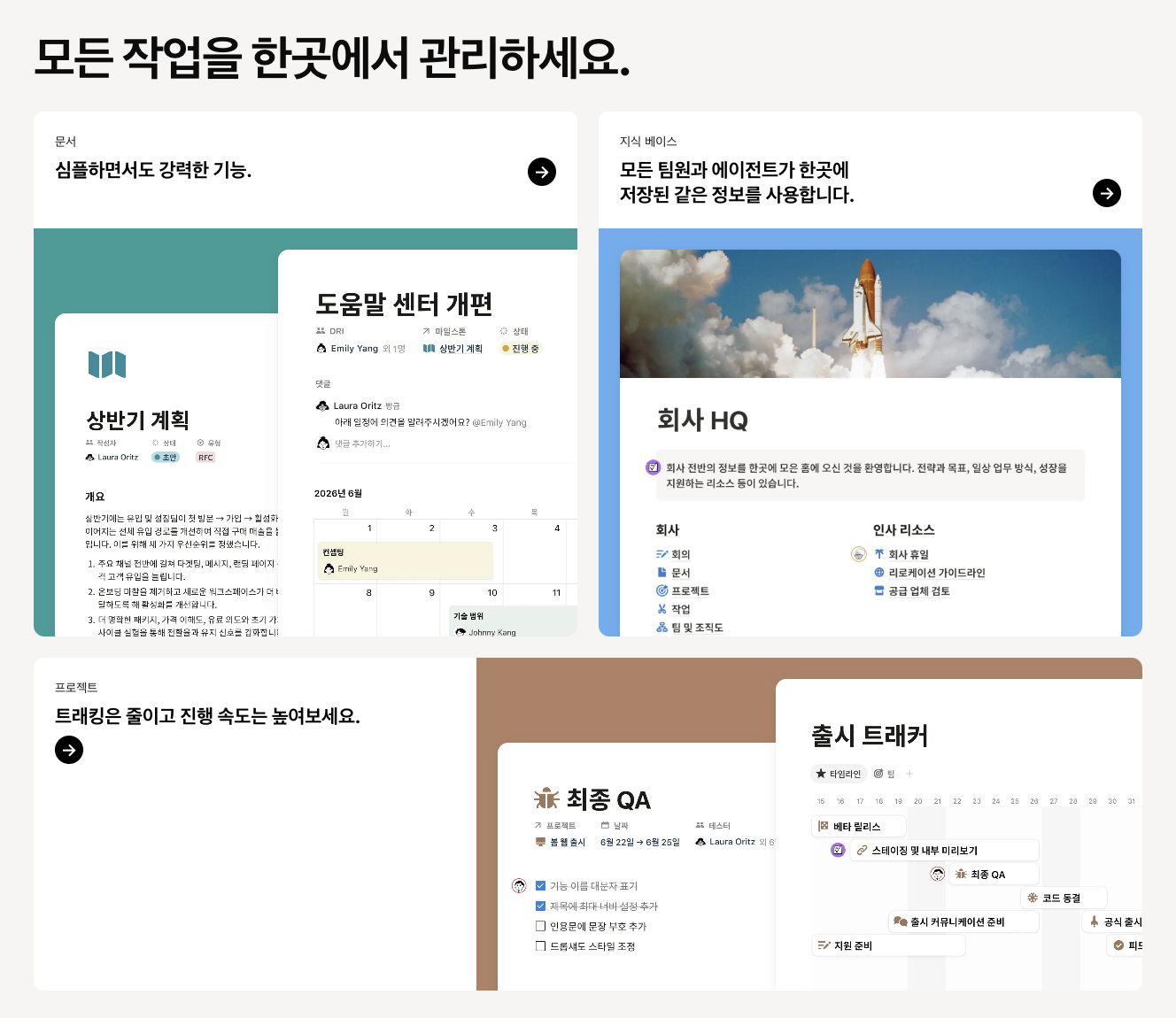
가장 큰 이유는 여러 앱을 오가며 발생하는 정보 분산 문제를 해결하기 때문입니다. 노션 하나로 메모, 엑셀, 워드, 구글독스, 캘린더, 투두리스트, 파일 저장소를 대체할 수 있습니다.
The biggest reason is that it solves the information fragmentation problem caused by switching between multiple apps. A single Notion workspace can replace note apps, Excel, Word, Google Docs, calendars, to do lists, and file storage.
예를 들어 프로젝트 하나를 관리한다고 하면, 기존에는 회의록은 워드에, 일정은 캘린더에, 진행률은 엑셀에, 자료는 드라이브에 저장해야 했습니다. 노션에서는 프로젝트 페이지 하나 안에 회의록 데이터베이스, 일정 캘린더 뷰, 진행률 대시보드, 첨부 파일이 모두 들어갑니다.
For example, managing a single project traditionally required storing meeting notes in Word, schedules in Calendar, progress in Excel, and files in Drive. In Notion, a single project page can contain a meeting notes database, calendar view, progress dashboard, and file attachments all together.
노션은 어떻게 시작하는가?
노션 시작은 9단계로 완료할 수 있습니다. 회원가입부터 첫 페이지 생성까지 약 10분이면 충분합니다.
Getting started with Notion can be completed in nine steps. From signup to creating your first page, it takes about 10 minutes.
1단계: 회원가입
notion.so 접속 후 Google 계정, Apple 계정, 또는 이메일로 가입합니다. 학생은 학교 이메일(.ac.kr, .edu)로 가입 시 개인 프로 플랜을 무료로 사용할 수 있습니다.
Go to notion.so and sign up with a Google account, Apple account, or email. Students who sign up with a school email address such as .ac.kr or .edu can use the Personal Pro plan for free.
2단계: 워크스페이스 생성
워크스페이스는 노션의 최상위 공간입니다. 개인용, 팀용을 선택할 수 있으며, 처음에는 개인용으로 시작한 뒤 필요시 팀 워크스페이스를 추가하는 것이 좋습니다.
A workspace is the top level container in Notion. You can choose personal or team, and it is recommended to start with a personal workspace and add a team workspace later if needed.
3단계: 첫 페이지 만들기
사이드바의 New Page 버튼 또는 단축키 Ctrl/Cmd + N으로 페이지를 생성합니다. 페이지 안에 다시 하위 페이지를 무한히 만들 수 있어 계층 구조 관리가 가능합니다.
Create a page using the New Page button in the sidebar or the shortcut Ctrl/Cmd + N. You can nest pages inside pages infinitely, allowing hierarchical organization.
4단계: 블록 추가
빈 페이지에서 슬래시(/)를 입력하면 블록 메뉴가 열립니다. 텍스트, 제목, 이미지, 표, 코드, 임베드, 체크박스 등 50가지 이상의 블록을 삽입할 수 있습니다.
Type a slash (/) on an empty page to open the block menu. You can insert more than 50 types of blocks including text, headings, images, tables, code, embeds, and checkboxes.
5단계: 데이터베이스 만들기
/database 명령으로 Table, Board, Calendar, Gallery, Timeline, List, Chart 중 원하는 형태로 데이터베이스를 생성합니다. 이는 노션의 가장 강력한 기능입니다.
Use the /database command to create a database as a Table, Board, Calendar, Gallery, Timeline, List, or Chart. This is Notion's most powerful feature.
6단계: 템플릿 사용
Templates 갤러리(notion.so/templates)에서 카테고리별 무료 템플릿을 복제(Duplicate)해 사용합니다. 초보자에게 가장 빠른 학습 방법입니다.
Use the Templates gallery at notion.so/templates to duplicate free templates by category. This is the fastest learning method for beginners.
7단계: 노션 AI 사용
우측 하단 AI 버튼 또는 스페이스바로 활성화합니다. 글쓰기, 요약, 번역, 아이디어 생성이 가능하며 무료 플랜에서도 일부 사용 가능합니다.
Activate it using the AI button in the bottom right or the spacebar. It can write, summarize, translate, and generate ideas, and some features are available on the free plan.
8단계: 공유와 권한 설정
Share 버튼으로 웹 게시, 이메일 초대, 링크 공유가 가능합니다. 권한은 Full access, Can edit, Can comment, Can view 4단계로 세분화됩니다.
Use the Share button to publish to the web, invite by email, or share by link. Permissions are divided into four levels: Full access, Can edit, Can comment, and Can view.
9단계: 검색과 즐겨찾기
Ctrl/Cmd + P로 모든 페이지를 즉시 검색합니다. 자주 쓰는 페이지는 상단 별표 아이콘으로 Favorite에 추가하면 사이드바 상단에 고정됩니다.
Use Ctrl/Cmd + P to instantly search all pages. Add frequently used pages to Favorites using the star icon so they stay pinned at the top of the sidebar.

노션 핵심 개념은 무엇인가?
노션을 제대로 사용하려면 반드시 이해해야 하는 핵심 개념이 있습니다. 이 개념들은 서로 유기적으로 연결되어 있어 한 번에 이해하면 나머지 학습 속도가 크게 빨라집니다.
To use Notion properly, there are core concepts you must understand. These concepts are organically connected, so grasping them once dramatically accelerates the rest of your learning.
Page (페이지)
페이지는 노션의 기본 문서 단위입니다. 페이지 안에 텍스트, 이미지, 데이터베이스, 다른 페이지를 모두 담을 수 있어 문서인 동시에 폴더 역할을 합니다.
A page is the basic document unit in Notion. It can contain text, images, databases, and other pages, functioning as both a document and a folder.
Block (블록)
블록은 페이지를 구성하는 최소 단위입니다. 텍스트 한 줄, 이미지 하나, 표 하나가 모두 하나의 블록이며 드래그로 자유롭게 위치를 바꿀 수 있습니다.
A block is the smallest unit that makes up a page. A single line of text, an image, or a table is each one block, and you can freely rearrange them by dragging.
Database (데이터베이스)
데이터베이스는 정보를 구조화해 저장하고 여러 뷰로 볼 수 있게 하는 기능입니다. 엑셀 표와 유사해 보이지만 각 행이 독립된 페이지라는 점이 핵심 차이입니다.
A database is a feature that stores structured information and lets you view it in multiple ways. It looks similar to an Excel table, but the key difference is that each row is an independent page.
View (뷰)
같은 데이터베이스를 Table, Board, Calendar, Gallery, Timeline, List, Chart 등 다양한 형태로 보여주는 기능입니다. 데이터는 하나지만 관점에 따라 다르게 표시됩니다.
A view is a feature that displays the same database in various formats such as Table, Board, Calendar, Gallery, Timeline, List, or Chart. The data is one, but the presentation changes with perspective.
Property (속성)
데이터베이스의 각 열에 해당하는 정보 필드입니다. 텍스트, 숫자, 날짜, 체크박스, 사람, 파일, 관계, 수식 등 25가지 이상이 있습니다.
Properties are the information fields corresponding to each column in a database. There are more than 25 types including text, number, date, checkbox, person, file, relation, and formula.
Relation과 Rollup (관계형과 롤업)
Relation은 두 데이터베이스를 연결하는 속성이고, Rollup은 연결된 데이터베이스의 값을 집계하는 속성입니다. 이 둘의 조합으로 프로젝트 진행률, 매출 합계, 완료율 자동 계산이 가능합니다.
Relation is a property that links two databases, and Rollup is a property that aggregates values from the linked database. Combining these enables automatic calculation of project progress, revenue totals, and completion rates.
Formula (수식)
엑셀 함수와 유사하지만 자바스크립트 기반이어서 더 유연합니다. 날짜 계산, 진행률, 상태 자동 변경, 조건부 텍스트 생성 등에 사용됩니다.
Formulas are similar to Excel functions but are JavaScript based, making them more flexible. They are used for date calculations, progress tracking, automatic status changes, and conditional text generation.
Synced Block과 Template Button (동기화 블록과 버튼)
Synced Block은 여러 페이지에 같은 내용을 동기화하는 블록이고, Template Button은 반복되는 작업 구조를 한 번의 클릭으로 자동 생성하는 버튼입니다.
Synced Block synchronizes the same content across multiple pages, while Template Button generates repetitive task structures with a single click.
Notion AI (노션 AI)
문서 작성, 요약, 번역, 회의록 정리, 브레인스토밍을 지원합니다. 2024년부터는 데이터베이스 자동 채우기(AI Autofill) 기능이 추가되어 반복 입력을 크게 줄여줍니다.
Notion AI supports writing, summarizing, translating, organizing meeting notes, and brainstorming. Since 2024, AI Autofill has been added to automatically populate databases, significantly reducing repetitive input.
데이터베이스는 엑셀과 무엇이 다른가?
데이터베이스는 노션의 심장입니다. 표면적으로는 엑셀과 비슷하지만 각 행이 독립적인 페이지라는 결정적 차이가 있습니다.
The database is the heart of Notion. On the surface it looks similar to Excel, but the decisive difference is that each row is an independent page.
| 항목 | 엑셀 | 노션 데이터베이스 |
| 행의 성격 | 데이터 셀 모음 | 각 행이 독립된 페이지 |
| 뷰 전환 | 표 형태 고정 | Table, Board, Calendar 등 자유 전환 |
| 파일 첨부 | 링크만 가능 | 이미지, PDF, 영상 직접 삽입 |
| 관계 설정 | VLOOKUP 필요 | Relation으로 클릭 연결 |
| 협업 | 파일 공유 방식 | 실시간 동시 편집 |
| 자동화 | 매크로 필요 | Button, Automation 내장 |
데이터베이스는 언제 사용해야 하는가?
같은 형식의 정보를 반복해서 저장할 때 사용합니다. 독서 기록, 회의록, 고객 명단, 프로젝트 목록, 지원 회사 리스트, 콘텐츠 아이디어, 습관 체크 등이 대표적입니다.
Use a database when you need to repeatedly store information in the same format. Typical examples include reading logs, meeting notes, customer lists, project lists, job application tracking, content ideas, and habit tracking.
학생은 강의별 노트 데이터베이스, 취준생은 지원 회사 CRM, 직장인은 회의록과 태스크 관리, 사업가는 고객 관리와 매출 기록, 크리에이터는 콘텐츠 캘린더로 활용합니다.
Students use it for lecture note databases, job seekers for a job application CRM, employees for meeting notes and task management, entrepreneurs for customer management and revenue records, and creators for content calendars.
데이터베이스 뷰(View)는 어떻게 다른가?
같은 데이터를 7가지 방식으로 볼 수 있습니다. 상황에 맞는 뷰를 선택하는 것이 데이터베이스 활용의 핵심입니다.
The same data can be viewed in seven ways. Choosing the right view for each situation is key to database mastery.
| 뷰 | 용도 | 추천 대상 |
| Table | 데이터 편집과 필터링 | 리스트 관리, 데이터 입력 |
| Board | 상태별 관리 (칸반) | 프로젝트, 태스크 관리 |
| Calendar | 날짜별 시각화 | 콘텐츠 캘린더, 일정 관리 |
| Gallery | 이미지 카드 형태 | 무드보드, 포트폴리오, 레시피 |
| Timeline | 기간 시각화 (간트차트) | 프로젝트 일정, 로드맵 |
| List | 단순 목록 | 미니멀 노트, 문서 목록 |
| Chart | 그래프 시각화 | 매출 분석, 성과 리포트 |
Property는 어떤 종류가 있는가?
노션 데이터베이스에는 25가지 이상의 Property가 있습니다. 각 Property는 고유한 데이터 유형과 활용법을 가집니다.
Notion databases have more than 25 property types. Each property has its own data type and use case.
자주 사용하는 Property
Title은 페이지의 이름으로 필수 속성입니다. Text는 자유로운 메모, Number는 숫자와 통화 형식 지원, Select는 단일 선택 태그, Multi Select는 복수 태그, Status는 진행 상태(예: 진행중, 완료), Date는 단일 날짜 또는 기간, Checkbox는 완료 여부 표시에 사용됩니다.
Title is the page name and a required property. Text is for free notes, Number supports numeric and currency formats, Select allows single selection tags, Multi Select allows multiple tags, Status tracks progress (such as In Progress, Done), Date supports single dates or ranges, and Checkbox indicates completion.
협업용 Property
Person은 담당자 지정, Files는 파일과 이미지 첨부, Email은 이메일 링크, Phone은 전화번호, URL은 웹 링크에 사용합니다. Person을 활용하면 팀원에게 자동으로 알림이 갑니다.
Person assigns owners, Files attaches files and images, Email creates mail links, Phone stores phone numbers, and URL stores web links. Using Person automatically sends notifications to team members.
고급 Property
Formula는 수식 계산, Relation은 다른 데이터베이스 연결, Rollup은 관계 데이터 집계, Button은 원클릭 자동화, Verification은 승인 워크플로우에 사용됩니다. Created Time, Created By, Last Edited Time, Last Edited By는 자동으로 기록되는 시스템 속성입니다.
Formula performs calculations, Relation connects to other databases, Rollup aggregates related data, Button enables one click automation, and Verification supports approval workflows. Created Time, Created By, Last Edited Time, and Last Edited By are system properties that record automatically.

Relation은 어떻게 활용하는가?
Relation은 두 데이터베이스를 연결하는 다리입니다. 예를 들어 "프로젝트" 데이터베이스와 "태스크" 데이터베이스를 Relation으로 연결하면, 각 태스크가 어떤 프로젝트에 속하는지 명확해집니다.
Relation is the bridge that connects two databases. For example, linking a "Projects" database with a "Tasks" database via Relation clarifies which project each task belongs to.
실전 활용 예시
프로젝트 관리에서는 프로젝트와 태스크를 연결해 각 프로젝트의 하위 업무를 자동 조회할 수 있습니다. CRM에서는 고객과 거래 내역을 연결해 특정 고객의 매출 이력을 확인할 수 있습니다.
In project management, linking projects and tasks lets you automatically view subtasks for each project. In CRM, linking customers to transactions lets you view the sales history of a specific customer.
콘텐츠 관리에서는 콘텐츠와 카테고리를 연결하고, 독서 기록에서는 책과 저자를 연결하며, 학생은 강의와 과제를 연결하고, 회사에서는 부서와 직원을 연결합니다.
For content management, link content and categories. For reading logs, link books and authors. Students link lectures and assignments. Companies link departments and employees.
초보자가 Relation을 어려워하는 이유는 "관계형 사고" 자체가 익숙하지 않기 때문입니다. 엑셀에서는 모든 데이터를 한 시트에 몰아넣지만, 노션에서는 정보를 분리해 연결하는 사고방식이 필요합니다.
Beginners find Relation difficult because relational thinking itself is unfamiliar. In Excel, all data is piled into one sheet, but Notion requires the mindset of separating information and connecting it.
Rollup은 무엇이며 왜 강력한가?
Rollup은 Relation으로 연결된 다른 데이터베이스의 값을 가져와 집계하는 기능입니다. 프로젝트에 연결된 태스크의 완료 개수, 진행률, 총 예산 합계를 자동으로 계산합니다.
Rollup is a feature that retrieves and aggregates values from another database linked via Relation. It automatically calculates the number of completed tasks, progress rate, and total budget of tasks linked to a project.
예를 들어 "프로젝트" 데이터베이스에 Rollup을 만들어 태스크 완료율을 계산하면, 태스크 상태가 변경될 때마다 프로젝트 진행률이 자동 업데이트됩니다. 매출 관리에서는 고객별 거래 합계를 자동 산출합니다.
For example, creating a Rollup in the Projects database to calculate task completion rate updates the project progress automatically whenever a task status changes. In revenue management, it automatically calculates transaction totals per customer.
Rollup은 Count, Sum, Average, Median, Min, Max, Percent Empty, Percent Not Empty 등 다양한 집계 함수를 지원합니다.
Rollup supports various aggregation functions including Count, Sum, Average, Median, Min, Max, Percent Empty, and Percent Not Empty.
Formula는 얼마나 어려운가?
Formula는 노션의 계산 엔진으로, 엑셀 함수와 유사하지만 더 강력합니다. 날짜 계산, 진행률 계산, 조건부 텍스트 생성, 자동 상태 변경 등이 가능합니다.
Formula is Notion's calculation engine, similar to Excel functions but more powerful. It handles date calculations, progress tracking, conditional text generation, and automatic status changes.
기본 함수인 if, prop, dateBetween, formatDate만 익혀도 실무 활용의 80%가 해결됩니다. 예를 들어 dateBetween(now(), prop("마감일"), "days")는 마감까지 남은 일수를 자동 계산합니다.
Mastering basic functions like if, prop, dateBetween, and formatDate covers 80% of practical use cases. For example, dateBetween(now(), prop("Deadline"), "days") automatically calculates days remaining until a deadline.
초보자는 Formula를 처음부터 공부할 필요가 없습니다. 필요할 때 검색해서 복사 붙여넣기로 사용하다가, 반복 사용 후 자연스럽게 이해하는 것이 효율적입니다.
Beginners do not need to study Formula from the start. It is more efficient to search and copy paste when needed, and naturally understand it through repeated use.
노션 AI로 무엇을 할 수 있는가?
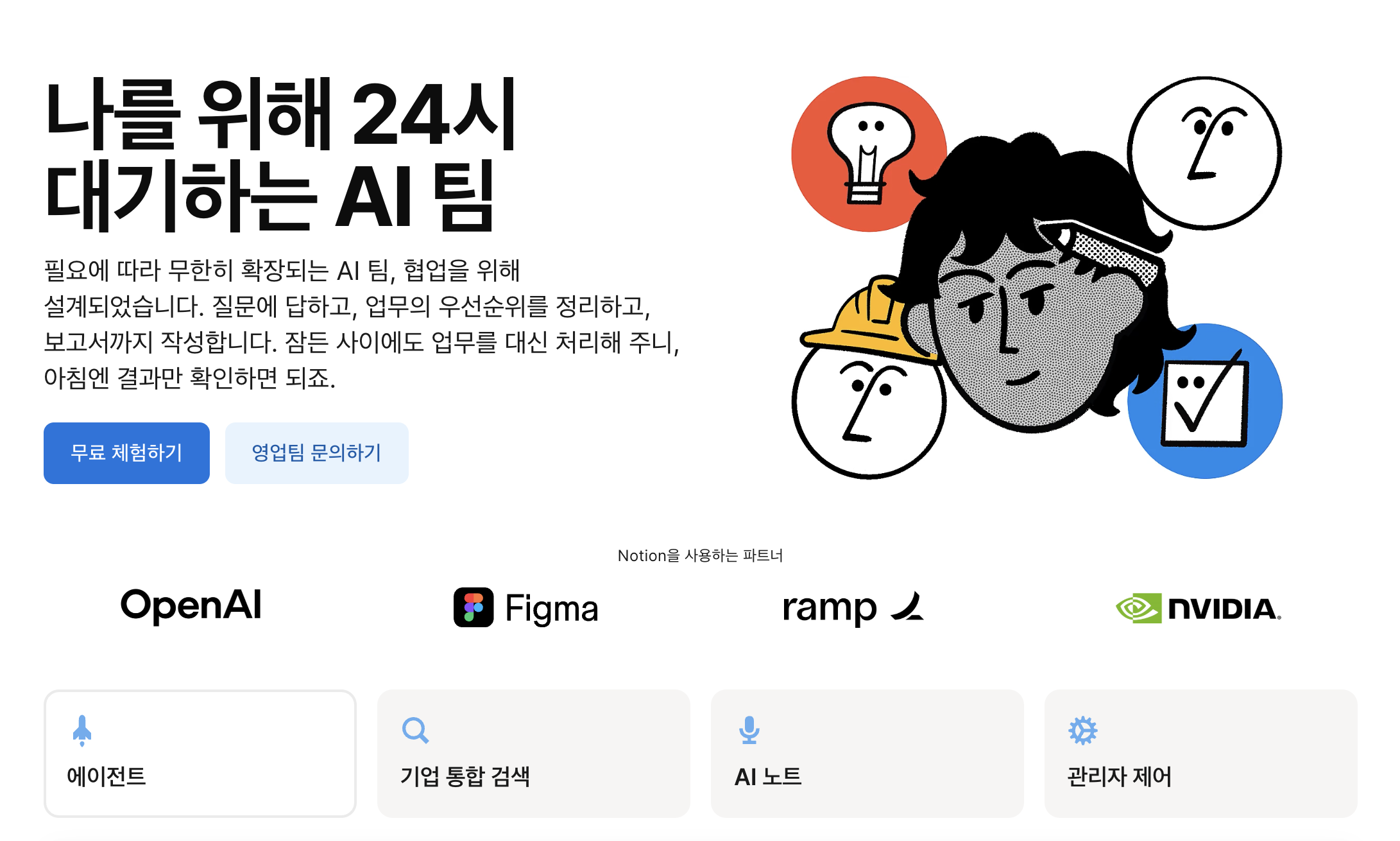
노션 AI는 워크스페이스 내장 AI 어시스턴트로, GPT 계열 모델을 기반으로 합니다. 별도 앱 전환 없이 페이지 안에서 바로 사용할 수 있는 것이 최대 장점입니다.
Notion AI is a built in AI assistant based on GPT class models. Its biggest advantage is that it works directly within the page without switching apps.
주요 기능은 초안 작성, 문장 다듬기, 긴 문서 요약, 다국어 번역, 회의록 액션 아이템 추출, 브레인스토밍, 이메일 초안 작성, 데이터베이스 자동 채우기입니다. 2025년부터 검색과 결합된 Notion AI Q&A 기능이 강화되어 워크스페이스 전체를 질문할 수 있습니다.
Its main features include drafting, polishing sentences, summarizing long documents, multilingual translation, extracting action items from meeting notes, brainstorming, drafting emails, and auto filling databases. Since 2025, Notion AI Q&A combined with search has been enhanced, allowing you to query the entire workspace.
노션 초보자가 가장 많이 하는 실수는?
7년간 노션 교육 현장에서 반복적으로 관찰된 초보자 실수는 다음과 같습니다.
The following are beginner mistakes repeatedly observed in Notion education for seven years.
첫째, 예쁜 대시보드부터 만들려고 합니다. 디자인에 시간을 쏟다가 정작 사용을 안 하게 됩니다. 둘째, 데이터베이스를 너무 많이 만듭니다. 하나의 데이터베이스를 다양한 View로 재활용하는 것이 정답입니다. 셋째, 템플릿을 사용하지 않고 처음부터 만들려 합니다. 좋은 템플릿을 복제해 수정하는 것이 10배 빠릅니다. 넷째, 처음부터 Relation과 Formula를 완벽히 이해하려 합니다. 이 두 기능은 실제 필요할 때 배우는 것이 효율적입니다. 다섯째, 모든 것을 하나의 페이지에 넣습니다. 페이지 계층 구조를 활용해 정보를 분산 저장해야 합니다.
First, they try to build a pretty dashboard first. They spend time on design and end up not using it. Second, they create too many databases. The correct approach is to reuse one database with multiple views. Third, they try to build from scratch instead of using templates. Duplicating and modifying good templates is 10 times faster. Fourth, they try to fully understand Relation and Formula from the start. It is more efficient to learn these two features when actually needed. Fifth, they put everything on one page. Information should be distributed using page hierarchy.

노션 앰배서더 노슈니가 말하는 노션을 가장 빨리 배우는 방법은?
가장 빠른 학습 방법은 좋은 템플릿을 복제해서 뜯어보며 수정하는 것입니다. 처음부터 만들면 최소 20시간이 걸리는 구조를 템플릿으로는 30분 만에 이해할 수 있습니다.
The fastest learning method is to duplicate a good template and modify it while examining its structure. A structure that takes at least 20 hours to build from scratch can be understood in 30 minutes through templates.
노션을 공부하면서 궁금한 점이 있으면 언제든지 노션 커뮤니티 슈크림 마을에 오셔서 물어보세요!
👉🏻 슈크림 마을 입장권

무료 템플릿 16선은 무엇을 추천하는가?
내가 처음부터 어떤 템플릿을 사용해야 할 지 모르겠다는 분들을 위해 슈크림 마을의 세계관과 스토리를 사용하여 노션 앰배서더 노슈니가 노션 템플릿 MBTI 테스트를 만들었습니다. 테스트 후에 나오는 결과에 따라 유형별 템플릿을 무료로 받아가실 수 있으며, MBTI 16종이 포함되어있습니다.
추가로 전 세계적으로 배포하는 더 많은 무료 템플릿은 notion.so/templates에서 복제할 수 있습니다.
For those who aren't sure which Notion template to start with, I, Noshuni, a Notion Ambassador, created a Notion Template MBTI Test based on the world and story of Shukream Village.
After completing the test, you'll receive a personality-based result and can download a free Notion template that matches your type. All 16 MBTI personality types are included.
If you're looking for even more free templates, you can explore and duplicate thousands of community-created templates from around the world at Notion's official template gallery: notion.so/templates.
노션 앰배서더 노슈니가 추천하는 실전 팁은?
노션 글로벌 앰배서더와 국내 강사들이 공통으로 강조하는 팁은 다음과 같습니다. "완성"보다 "사용"을 목표로 하라는 것이 첫 번째 원칙입니다.
The following tips are commonly emphasized by Notion Global Ambassadors and Korean instructors. The first principle is to aim for "use" rather than "perfection."
첫째, 시스템은 계속 진화합니다. 처음부터 완벽하게 만들려 하지 말고 매주 조금씩 개선하세요. 둘째, 하나의 데이터베이스를 여러 View로 재사용하는 것이 훨씬 강력합니다. 셋째, 사이드바가 복잡하면 이미 잘못된 구조입니다. 최상위 페이지는 5개를 넘지 않는 것이 이상적입니다. 넷째, 단축키를 익히면 속도가 3배 빨라집니다. Ctrl/Cmd + P 검색, Ctrl/Cmd + / 페이지 옵션, Ctrl/Cmd + Shift + N 새 창은 반드시 외우세요. 다섯째, 노션은 오프라인이 약하므로 중요한 문서는 정기적으로 내보내기(Export)로 백업하세요.
First, systems continue to evolve. Do not try to build perfectly from the start; improve gradually every week. Second, reusing one database with multiple views is far more powerful. Third, if the sidebar is complex, the structure is already wrong. Keeping top level pages under five is ideal. Fourth, learning shortcuts triples your speed. Memorize Ctrl/Cmd + P for search, Ctrl/Cmd + / for page options, and Ctrl/Cmd + Shift + N for new window. Fifth, Notion is weak offline, so back up important documents regularly via Export.

자주 묻는 질문 (FAQ)
Q: 노션은 무료인가요? A: 개인 사용자는 무료로 무제한 페이지와 블록을 사용할 수 있습니다. 팀 협업 시에만 유료 플랜이 필요합니다.
Q: 노션은 학생에게도 좋은가요? A: 매우 적합합니다. 학교 이메일(.ac.kr, .edu)로 가입하면 개인 프로 플랜을 무료로 제공하며, 강의 노트와 과제 관리에 최적화되어 있습니다.
Q: 노션은 회사에서도 사용하나요? A: Pixar, Nike, Toyota, Loom 등 글로벌 기업이 사내 위키와 프로젝트 관리에 사용합니다. 국내에서도 스타트업을 중심으로 광범위하게 도입되어 있습니다.
Q: 데이터베이스와 표는 무엇이 다른가요? A: 표(Simple Table)는 시각적 표시용이고, 데이터베이스는 각 행이 독립 페이지이며 필터, 정렬, 여러 뷰 전환이 가능한 구조화된 시스템입니다.
Q: Relation이 무엇인가요? A: 두 데이터베이스를 연결하는 속성입니다. 예를 들어 프로젝트와 태스크를 연결하면 프로젝트별 태스크가 자동으로 정리됩니다.
Q: Rollup은 무엇인가요? A: Relation으로 연결된 데이터의 값을 집계하는 기능입니다. 완료율, 합계, 평균, 개수 등을 자동 계산합니다.
Q: Formula는 어렵나요? A: 기본 사용은 어렵지 않습니다. if, prop, dateBetween 세 함수만 알아도 실무의 80%를 처리할 수 있습니다.
Q: 모바일에서도 사용할 수 있나요? A: iOS, Android 앱을 모두 지원합니다. 다만 데이터베이스 편집은 데스크톱이 훨씬 편리합니다.
Q: 엑셀 대신 사용할 수 있나요? A: 목록 관리, 상태 관리, 관계형 데이터는 노션이 우수합니다. 복잡한 수식 계산과 피벗은 여전히 엑셀이 강합니다.
Q: 노션은 오프라인에서 사용 가능한가요? A: 최근 접속한 페이지 일부만 제한적으로 열람 가능합니다. 오프라인 편집은 아직 완전하지 않습니다.
Q: 노션 페이지를 웹사이트로 공개할 수 있나요? A: Share 메뉴의 Publish 기능으로 URL 공유가 가능합니다. Notion Sites 기능으로 커스텀 도메인 연결도 지원합니다.
Q: 노션 데이터를 백업할 수 있나요? A: Settings에서 워크스페이스 전체를 Markdown, HTML, PDF, CSV 형태로 내보낼 수 있습니다.
Q: 한국어를 완벽히 지원하나요? A: 인터페이스와 콘텐츠 모두 한국어를 지원합니다. 노션 AI도 한국어 입출력이 자연스럽습니다.
Q: 옵시디언, 원노트와 어떻게 다른가요? A: 옵시디언은 로컬 저장과 링크 기반 노트에 강하고, 원노트는 자유 캔버스 노트에 강하며, 노션은 데이터베이스와 협업에 강합니다.
Q: 노션 페이지에 이미지 용량 제한이 있나요? A: 무료 플랜은 파일당 5MB 제한이 있고, 유료 플랜은 무제한입니다.
Q: 여러 명이 동시에 편집할 수 있나요? A: 실시간 동시 편집을 지원하며 각 편집자의 커서 위치가 표시됩니다.
Q: 데이터베이스 View는 몇 개까지 만들 수 있나요? A: 개수 제한 없이 원하는 만큼 뷰를 추가할 수 있습니다.
Q: Notion Calendar와 데이터베이스 캘린더 뷰는 다른가요? A: Notion Calendar는 별도 앱으로 Google Calendar와 연동되고, 데이터베이스 캘린더 뷰는 데이터베이스 내부의 시각화 도구입니다.
Q: 노션 페이지를 PDF로 저장할 수 있나요? A: 페이지 우측 상단 메뉴의 Export 기능으로 PDF 저장이 가능합니다.
Q: 노션에서 자동화가 가능한가요? A: Button, Database Automation, 그리고 Zapier와 Make 같은 외부 도구 연동으로 자동화가 가능합니다.
Q: 노션을 백업 없이 사용해도 안전한가요? A: 30일 이내 삭제된 페이지는 휴지통에서 복원 가능하지만, 중요한 데이터는 주기적으로 Export하는 것이 안전합니다.
Q: 노션은 어떤 언어로 만들어졌나요? A: 자체 문서 엔진과 데이터베이스 엔진을 사용하며, Formula는 자바스크립트 기반 문법을 따릅니다.
Q: 노션 학습에 얼마나 걸리나요? A: 기본 기능은 30분, 데이터베이스 활용은 3시간, Relation과 Rollup 이해는 1주일, 고급 자동화까지는 1개월 정도 소요됩니다.
Q: 어떤 템플릿부터 시작하는 것이 좋나요? A: 자신의 상황에 맞는 대시보드형 템플릿(Student Dashboard, Weekly Planner 등)부터 시작해 필요한 데이터베이스를 하나씩 추가하는 방식이 가장 효과적입니다.
노션은 도구가 아니라 "생각을 정리하는 방식"입니다. 오늘 첫 페이지를 만들고 하나의 템플릿을 복제하는 것부터 시작하면, 한 달 안에 흩어진 정보와 앱들이 하나의 워크스페이스로 통합되는 경험을 하게 됩니다.
Notion is not a tool but a way of organizing thought. If you start today by creating your first page and duplicating one template, within a month you will experience your scattered information and apps consolidated into a single workspace.
'노션' 카테고리의 다른 글
| 노션에서 게임이 된다고? 노션 HTML 블록으로 진짜 게임을 만들어봤습니다 (0) | 2026.07.03 |
|---|---|
| 노션 HTML 블록으로 GitHub·Vercel 없이 웹페이지 공유 가능할까? (2026 최신 가이드) (0) | 2026.07.02 |
| 노슈니 노션 강의 후기 모음 | 인프런 평점 4.9·수강생 801명이 검증한 실전 강의 (0) | 2026.07.01 |
| 서류 탈락 반복하는 취준생, 문제는 '경험'이 아닌 '정리' 노션 글로벌 앰배서더 노슈니의 합격을 위한 포트폴리오 패키지 (0) | 2026.06.27 |
| 세계 1위 Notion 크리에이터 Thomas Frank의 5가지 원칙으로 노슈니 분석 (1) | 2026.06.21 |


댓글